
Git — Version Control for Teams
Part 2 of 2 in Git for Teams
- Git — Version Control with SourceTree
- Git — Version Control for Teams
Git is a version control system — a tool that records every change made to your project over time. Think of it like a save history, but smarter: multiple people can work on the same files simultaneously without overwriting each other’s work. Every change is tracked, attributable, and reversible.
Without git, teams share files over email or cloud drives and conflicts are resolved manually. With git, the whole history lives in the project itself.
Installation
Windows
Download Git for Windows from git-scm.com. Accept the defaults during setup. This installs:
gitavailable in PowerShell and Command Prompt- Git Bash — a terminal emulator with Unix-style commands
Open Git Bash and verify the installation:
git --versionmacOS
macOS ships with a minimal git. Install the full version via Homebrew:
# Install Homebrew (skip if you already have it)
/bin/bash -c "$(curl -fsSL https://raw.githubusercontent.com/Homebrew/install/HEAD/install.sh)"

brew install git
git --version
Linux (Debian / Ubuntu)
sudo apt update && sudo apt install git
git --version
For Fedora / RHEL:
sudo dnf install gitInitial Configuration
Before using git, tell it who you are. This information is attached to every commit you make.
git config --global user.name "Your Name"
git config --global user.email "you@example.com"
These are stored in ~/.gitconfig. To verify:
git config --list
#or
git config -l
SSH Keys
What is an SSH Key?
When you push code to GitHub or GitLab, the platform needs to verify your identity. You could use a username and password every time — but SSH keys are more secure and require no typing.
An SSH key is a pair of files:
| File | Role |
|---|---|
| Private key | Stays on your machine. Never share it. |
| Public key | Uploaded to GitHub/GitLab. Acts like a padlock. |
Authentication works like a padlock: GitHub holds the lock (public key), you hold the key (private key). If they match, you’re in — no password needed.
Generating a Key
Open your terminal (Git Bash on Windows, Terminal on Mac/Linux):
ssh-keygen -t ed25519 -C "you@example.com"| Flag | Meaning |
|---|---|
-t ed25519 | ed25519 encryption algorithm — modern and recommended |
-C "..." | A label to identify the key (use your email) |
Press Enter to accept the default file location. You can optionally set a passphrase for an extra layer of security.
Where the Key is Stored
| File | Path | Description |
|---|---|---|
id_ed25519 | ~/.ssh/id_ed25519 | Your private key — never share this |
id_ed25519.pub | ~/.ssh/id_ed25519.pub | Your public key — this goes to GitHub/GitLab |
On Windows, ~ is C:\Users\YourName. On Mac/Linux, it’s /home/yourname.
Display your public key to copy it:
cat ~/.ssh/id_ed25519.pubThe output starts with ssh-ed25519 AAAA... — copy the entire line.
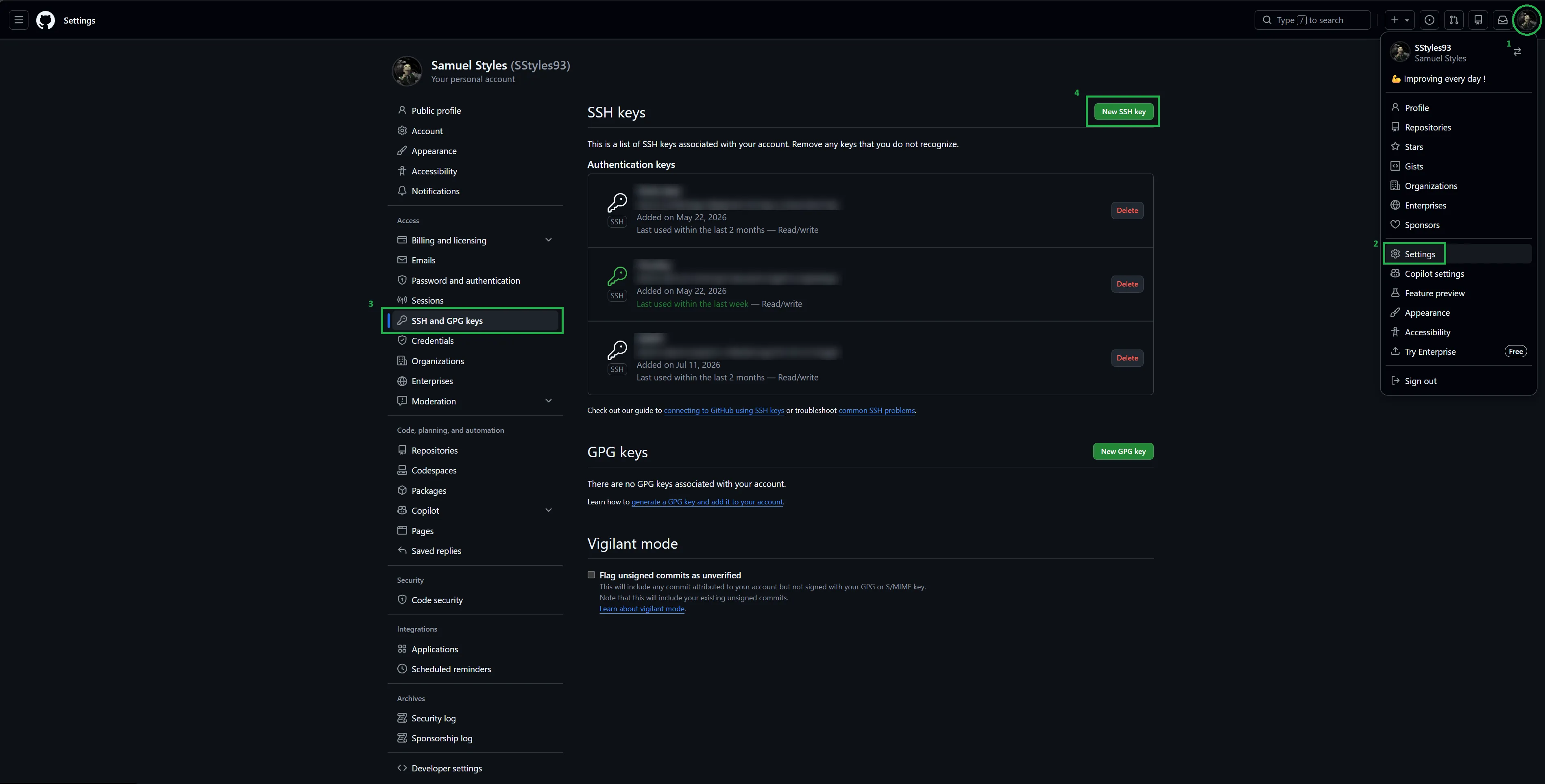
Adding the Key to GitHub
- Go to GitHub → Settings → SSH and GPG keys
- Click New SSH key
- Give it a title (e.g. “My Laptop”)
- Paste your public key in the Key field
- Click Add SSH key
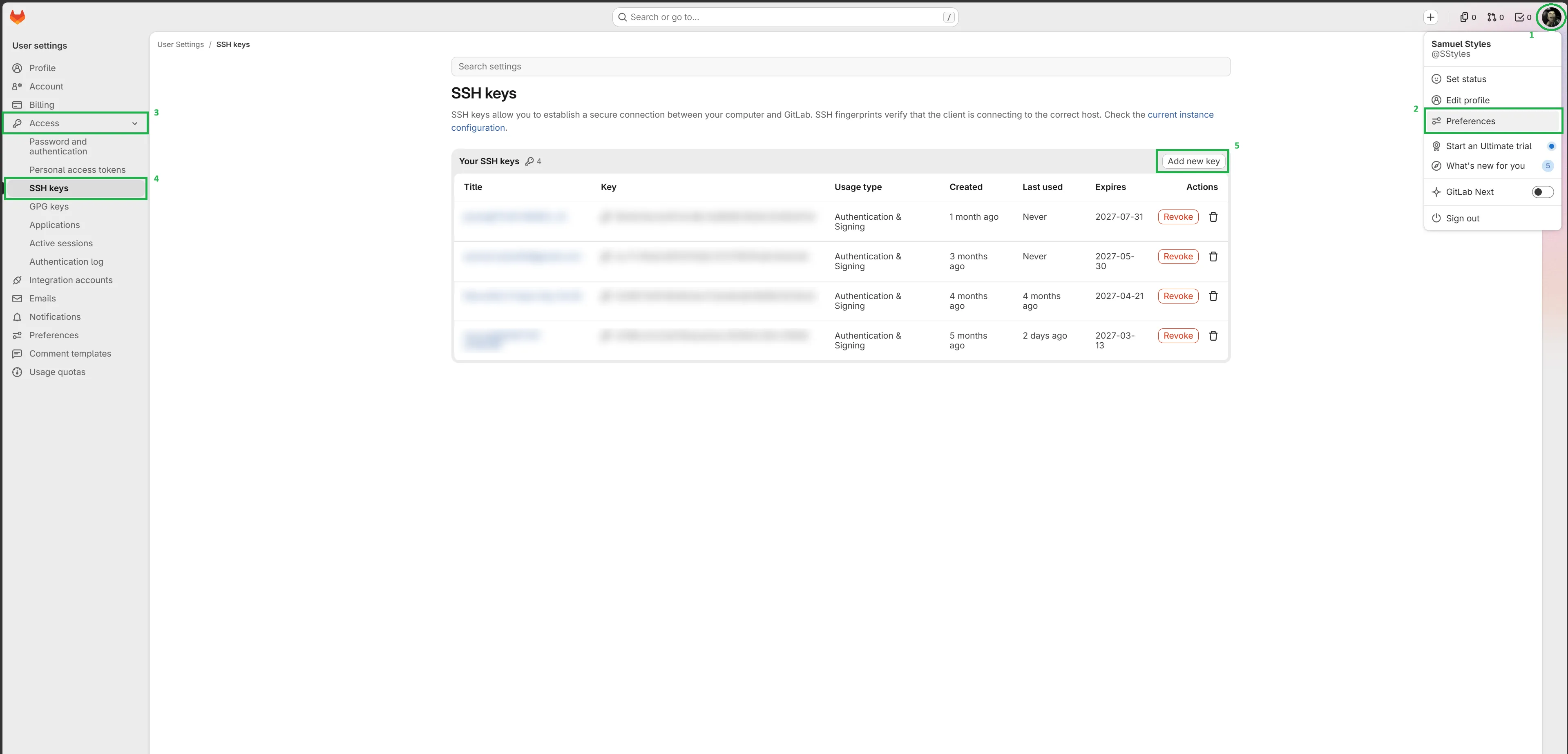
Adding the Key to GitLab
- Go to GitLab → Preferences → SSH Keys
- Paste your public key in the Key field
- Give it a title and optionally an expiry date
- Click Add key
Testing the Connection
ssh -T git@github.com   # GitHub
ssh -T git@gitlab.com   # GitLab
A successful response looks like:
Hi "username"! You've successfully authenticated, but GitHub does not provide shell access.In case of error “-v” can be added to the command for verbose output (more detailed)
Basic Commands
Initializing or Cloning a Repository
Start git tracking in an existing folder:
git initOr download an existing repository from GitHub/GitLab:
git clone git@github.com:username/repo-name.gitThe SSH URL (starting with git@) uses your SSH key. HTTPS URLs also work but will prompt for credentials every time.
git status
The most important command. Shows the current state of your working directory:
git status| Category shown | Meaning |
|---|---|
| Untracked files | New files git doesn’t know about yet |
| Changes not staged | Modified files, not yet added |
| Changes to be committed | Staged and ready to commit |
Run git status constantly — it always tells you what to do next.
git add
Stage files to include in the next commit:
git add file.txt          # stage one file
git add src/              # stage an entire folder
git add .                 # stage everything in the current directory
Staging is a deliberate step — it lets you choose exactly what goes into each commit.
git commit
Save a snapshot of your staged changes:
git commit -m "Add login form validation"A good commit message:
- Written in the present tense: “Add”, “Fix”, “Update”
- Describes what changed and ideally why
- Stays under ~70 characters
# Too vague
git commit -m "fix"

# Clear and useful
git commit -m "Fix crash when user has no profile picture"
git push
Upload your local commits to the remote repository:
git push                           # push current branch to its remote
git push -u origin feature/login   # link the branch to remote and push (first time)
The -u flag sets the upstream so future git push calls work without specifying the branch name.
git pull
Download and apply the latest changes from the remote:
git pullThis is git fetch (download) + git merge (apply) in one command.
Run it at the start of each session to stay in sync with your teammates.
git branch
Branches let you work on a feature in isolation without touching the main codebase.
git branch                         # list all local branches
git branch feature/login           # create a new branch
git checkout feature/login         # switch to a branch
git checkout -b feature/login      # create and switch in one step
git branch -d feature/login        # delete a branch (after merging)
Since git 2.23, git switch is the modern, dedicated command for switching branches.
It does exactly what git checkout does for branches — nothing else — making it clearer to read:
git switch feature/login           # switch to a branch
git switch -c feature/login        # create and switch in one step (-c = create)
Both checkout and switch work. switch is preferred in new workflows.
git reset
Remove files from staging or roll back to a previous state.
git reset file.txt     # unstage a file, keep the changes in your working directory
git reset              # unstage everything, keep all changes
git reset --hard <commit>   # move HEAD to <commit> and discard all changes
<commit> can be a commit hash, branch name, or tag:
git reset --hard abc1234   # reset to a specific commit
git reset --hard main      # reset to the tip of the main branch
git reset --hard v1.2.0    # reset to a tagged release
Warning:
--hardpermanently discards all uncommitted changes. Any work not yet committed will be lost.
git revert
Create a new commit that undoes the changes introduced by a previous commit:
git revert abc1234 # undo a specific commit by creating a new oneUnlike git reset, git revert does not rewrite history — the original commit stays.
This makes it safe to use on shared branches (like main) where teammates have already pulled the commit.
| Command | Rewrites history? | Safe on shared branches? |
|---|---|---|
git reset --hard | Yes | No |
git revert | No | Yes |
Simple Workflow
The simplest team workflow if the “Feature Branch”. Good for small teams and projects without fixed release cycles.
Why Branches Matter
Without branches, everyone pushes directly to main. This leads to conflicts, broken builds,
and code that ships without review. Branches give each feature its own safe workspace.
How it works
mainis always stable and deployable- Every feature or fix lives on its own branch
- Branches are merged back into
mainvia a Pull Request or Merge Request
main       ──────────────────────────────────────────●──────
            ↓ (pull)                                 ↑ (push)
feature    ────────●──────●──────●──────●────────────●
                (commits)               (ready to merge)
For Pull Resquests or Merge Requests see Professional Workflow — Pull Requests and Merge Requests
Branch naming convention
feature/user-login
bugfix/null-pointer-crash
hotfix/payment-gateway-timeout
Step-by-step workflow
# 1. Make sure main is up to date
git switch main
git pull

# 2. Create your feature branch
git switch -c feature/user-login

# 3. Work and commit regularly
git add .
git commit -m "Add login form"

# 4. Push to remote when ready
git push -u origin feature/user-login

# 5. Open a Pull Request (GitHub) or Merge Request (GitLab) on the platform
# 6. Once approved and merged on the platform, clean up locally
git switch main
git pull
git branch -d feature/user-login
Advanced Workflows
Structured Workflow — Gitflow
For larger teams with scheduled release cycles, Gitflow adds more structure between your work and production.
| Branch | Branched from | Purpose |
|---|---|---|
main | — | Production-ready code only. Always stable. |
develop | main | Integration point for completed features. |
feature/* | develop | Individual feature work. |
release/* | develop | Stabilization and testing before a release. |
hotfix/* | main | Emergency production fixes. |
main       ──────●───────────────────────────────────────────●───
                 ↓ (pull)                                    ↑ (push)
develop    ──────────●─────────────────────────────────●─────────
                     ↓ (pull)                          ↑ (push)
feature/X             ──────●──────●──────●────────────●
Step-by-step workflow:
# 1. Start from develop — never from main
git switch develop
git pull

# 2. Create a feature branch off develop
git switch -c feature/payment-gateway

# 3. Work and commit
git add .
git commit -m "Add Stripe integration"

# 4. Push and open a MR/PR targeting develop (not main)
git push -u origin feature/payment-gateway

# 5. Once merged into develop, prepare a release branch
git switch develop
git pull
git switch -c release/1.2.0

# 6. Fix last-minute issues on the release branch
git commit -m "Fix edge case in payment form"

# 7. Merge into main AND back into develop
git switch main
git merge release/1.2.0
git switch develop
git merge release/1.2.0
git branch -d release/1.2.0

# 8. Tag the release on main
git switch main
git tag -a v1.2.0 -m "Release 1.2.0"
git push origin v1.2.0
Emergency hotfix directly on production:
git switch main
git switch -c hotfix/crash-on-login
# ... fix the bug ...
git commit -m "Fix crash on login for users with no avatar"
git switch main
git merge hotfix/crash-on-login
git switch develop
git merge hotfix/crash-on-login      # keep develop in sync
git branch -d hotfix/crash-on-login
When to use which:
| Situation | Recommendation |
|---|---|
| Small team, continuous deployment | Simple feature branch |
| Larger team, versioned releases | Gitflow |
| Open-source with many contributors | Gitflow or fork-based model |
Professional Workflow — Pull Requests and Merge Requests
A Pull Request (GitHub) and Merge Request (GitLab) are the same concept — a formal request to merge a branch. The name differs by platform, the workflow is identical.
Their purpose goes beyond just merging code:
- Review changes before they reach production
- Discuss the approach with teammates
- Catch bugs early through peer review
- Trigger automated checks (tests, linting, CI/CD)
Step-by-step workflow:
# 1. Push your branch and open the PR/MR on GitHub or GitLab
git push -u origin feature/player-dash

# 2. Fill in the description (see template below), assign reviewers

# 3. Address review comments — push new commits to the same branch
git add .
git commit -m "Address review: clamp dash speed to prevent wall clipping"
git push

# 4. Once approved, merge on the platform (not locally)

# 5. Clean up locally
git switch main
git pull
git branch -d feature/player-dash
Writing a useful PR/MR description:
A good description saves your reviewers time — they shouldn’t need to read every line to understand the context:
## What this does
Adds a dash mechanic to the player — triggered by Shift, with a 0.8s cooldown and a short invincibility window.

## Why
Movement felt sluggish in playtests. Players needed a way to dodge attacks and close distance quickly.

## How to test
1. Enter Play mode
2. Hold Shift while moving in any direction
3. Verify the player dashes and the cooldown prevents spam
4. Walk into an enemy during the dash — verify no damage is taken
Rules that matter:
Protect main. Never push directly to main. On GitHub: Settings → Branches → Branch protection rules.
Require at least one reviewer approval before any merge.
One PR = one concern. A PR that adds a feature, refactors three unrelated files, and fixes a separate bug is hard to review. Keep PRs focused on a single change.
Review seriously. Code review is not a rubber stamp. Read the code, think about edge cases, ask questions. It’s how bugs get caught and how the whole team learns.
Commit often. Small, frequent commits are easier to review and easier to revert if something goes wrong.
Keep your branch up to date. If main moves forward while you’re on a feature branch, bring those changes in:
git switch feature/player-dash
git merge main         # merge main into your branch
Or with rebase (cleaner history):
git rebase mainQuick Reference
| Command | What it does |
|---|---|
git init | Initialize a new repository |
git clone <url> | Download an existing repository |
git status | Show what’s changed |
git add <file> | Stage a file for the next commit |
git add . | Stage all changes |
git commit -m "..." | Save a snapshot with a message |
git push | Upload commits to the remote |
git push -u origin <branch> | Link and push a branch for the first time |
git pull | Download and apply remote changes |
git branch <name> | Create a new branch |
git checkout <branch> | Switch to a branch (classic) |
git checkout -b <name> | Create and switch (classic) |
git switch <branch> | Switch to a branch (modern) |
git switch -c <name> | Create and switch (modern) |
git merge <branch> | Merge a branch into the current one |
git rebase <branch> | Reapply commits on top of another branch |
git reset | Unstage files, keep changes |
git reset --hard <commit> | Move HEAD to a commit and discard all changes |
git revert <commit> | Undo a commit by creating a new one (safe for shared branches) |
ssh-keygen -t ed25519 -C "..." | Generate an SSH key pair |