MarbleMaze: Deep Dive — Power-Up System, Player & DOTween Choreography
The player marble and its two power-ups — Rocket and UFO — share the same space but are fundamentally different objects. Swapping between them cleanly, without physics glitches or camera pops, required building a choreographed transition system on top of DOTween and a tightly coupled visual FSM on the player side. This post covers both, plus the movement, input, and camera systems that make the marble feel physical.
Power-Up Architecture
The core problem: when the player activates a power-up, several things must happen in a specific order with no overlap. Physics must be frozen before the swap; the camera must follow the new object before the old one disappears; the grow animation must not start until the shrink is complete.
A Sequence from DOTween is the right tool — it guarantees order, allows callbacks
between tween steps, and can be killed cleanly if activation is interrupted.
PowerUpData and State
Each power-up is described by a PowerUpData struct carrying its scene reference,
duration, height offset, and cached original scale. Both are registered in a
Dictionary<CoinType, PowerUpData> at Awake:
// PowerUpManager.cs
[Serializable]
public class PowerUpData
{
    public CoinType    type;
    public GameObject  objectRef;
    public float       duration;
    public float       heightOffset;
    public int         buyingValue;
    [HideInInspector] public Vector3 originalScale;
}

private void Awake()
{
    powerUps = new Dictionary<CoinType, PowerUpData>
    {
        { rocket.type, rocket },
        { ufo.type,    ufo    }
    };

    foreach (var pu in powerUps.Values)
    {
        pu.originalScale = pu.objectRef.transform.localScale; // cache before hiding
        pu.objectRef.SetActive(false);
    }
}
Caching originalScale at Awake — before the object is hidden — ensures the grow
animation always targets the correct designer-set scale regardless of later modifications.
A three-value PowerUpState enum drives the manager’s public contract:
public enum PowerUpState { Using, Clear, Blocked }

private void SetPowerUpState(PowerUpState state)
{
    powerUpState = state;
    OnPowerUpStateChanged?.Invoke(state); // UI, buttons, and EndTrigger subscribe to this
}
UsePowerUp guards against double-activation and dying-while-using:
public void UsePowerUp(CoinType type)
{
    if (powerUpState == PowerUpState.Using || playerState != PlayerState.Alive) return;
    // …
    ActivatePowerUp(pu);
    SetPowerUpState(PowerUpState.Using);
}
Activation — The DOTween Sequence
ActivatePowerUp kills any in-flight tweens from a previous call before building
a new Sequence:
private void ActivatePowerUp(PowerUpData pu)
{
    powerUpScaleTween?.Kill();
    sequence?.Kill();
    sequence = DOTween.Sequence().SetTarget(this); // tagged for targeted Kill on disable

    Rigidbody puRb = pu.objectRef.GetComponent<Rigidbody>();

    // 1. Position power-up at player's XZ, at its design height
    Vector3 pos = player.transform.position;
    pos.y = pu.heightOffset;
    pu.objectRef.transform.position = pos;
    pu.objectRef.transform.localScale = HiddenScale; // start invisible

    // 2. Camera switches before the player disappears
    PlayerCamera.SetCameraFollow(pu.objectRef);

    // 3. Freeze player physics during the transition
    playerRigidbody.isKinematic = true;

    // 4. Tell the player to shrink; reveal the power-up object simultaneously
    sequence.AppendCallback(() =>
    {
        playerVisualEffects.ShouldShrink();
        pu.objectRef.SetActive(true);
    });

    // 5. Power-up grows with squash-and-stretch
    powerUpScaleTween = pu.objectRef.transform
        .DOScale(pu.originalScale * squashStretch, scaleDuration) // overshoot
        .SetEase(easeOut)                                          // EaseOutBack
        .OnComplete(() =>
            pu.objectRef.transform.DOScale(pu.originalScale, 0.1f) // settle
        );

    sequence.Append(powerUpScaleTween);

    // 6. Unfreeze power-up physics — it can now roll/fly
    sequence.AppendCallback(() => puRb.isKinematic = false);
}
The camera transfer at step 2 — before the player shrinks — is intentional. If the camera were switched after the shrink, there would be a frame where it follows nothing. Switching first means the camera smoothly transitions to the new target while the player is still visible.
easeOut = Ease.OutBack and the 15% overshoot (* squashStretch) give the
power-up a confident, elastic arrival. The quick 0.1s settle in OnComplete avoids
the tween chain being a nested Sequence — it’s a one-shot inline correction.
Deactivation — Reversing the Sequence
Deactivation mirrors activation but with inverted easing — Ease.InBack for the
shrink feels like the power-up is being sucked away:
private void DeactivatePowerUp()
{
    powerUpScaleTween?.Kill();
    sequence?.Kill();
    sequence = DOTween.Sequence().SetTarget(this);

    var pu = powerUps[currentPowerType];
    Rigidbody puRb = pu.objectRef.GetComponent<Rigidbody>();

    // 1. Freeze power-up physics
    puRb.isKinematic = true;

    // 2. Teleport player to power-up's current world position; hide it
    player.transform.position = pu.objectRef.transform.position;
    player.transform.localScale = HiddenScale;

    // 3. Camera returns to player before the power-up disappears
    PlayerCamera.SetCameraFollow(player);

    // 4. Shrink the power-up to zero
    powerUpScaleTween = pu.objectRef.transform
        .DOScale(HiddenScale, scaleDuration)
        .SetEase(easeIn)                                     // EaseInBack
        .OnComplete(() => pu.objectRef.SetActive(false));

    sequence.Append(powerUpScaleTween);

    // 5. Re-enable player: show it, grow it, unfreeze physics, reset rotation
    sequence.AppendCallback(() =>
    {
        player.SetActive(true);
        playerVisualEffects.ShouldGrow();
        playerRigidbody.isKinematic = false;
        pu.objectRef.transform.rotation = Quaternion.identity; // reset any tilt
    });
}
Teleporting the player to the power-up’s position at step 2 means the marble reappears exactly where the Rocket or UFO was — no spatial discontinuity for the player.
DOTween Cleanup
All tweens use SetTarget(this) so they are associated with the manager:
private void OnDisable()
{
    DOTween.Kill(this);        // kills all tweens targeting this component
    powerUpScaleTween?.Kill(); // explicit safety for the detached scale tween
}
DOTween.Kill(this) is a targeted kill — it only affects tweens whose SetTarget
matches this. Without it, a scene reload while a tween is mid-flight would leave
orphaned tweens referencing destroyed objects.
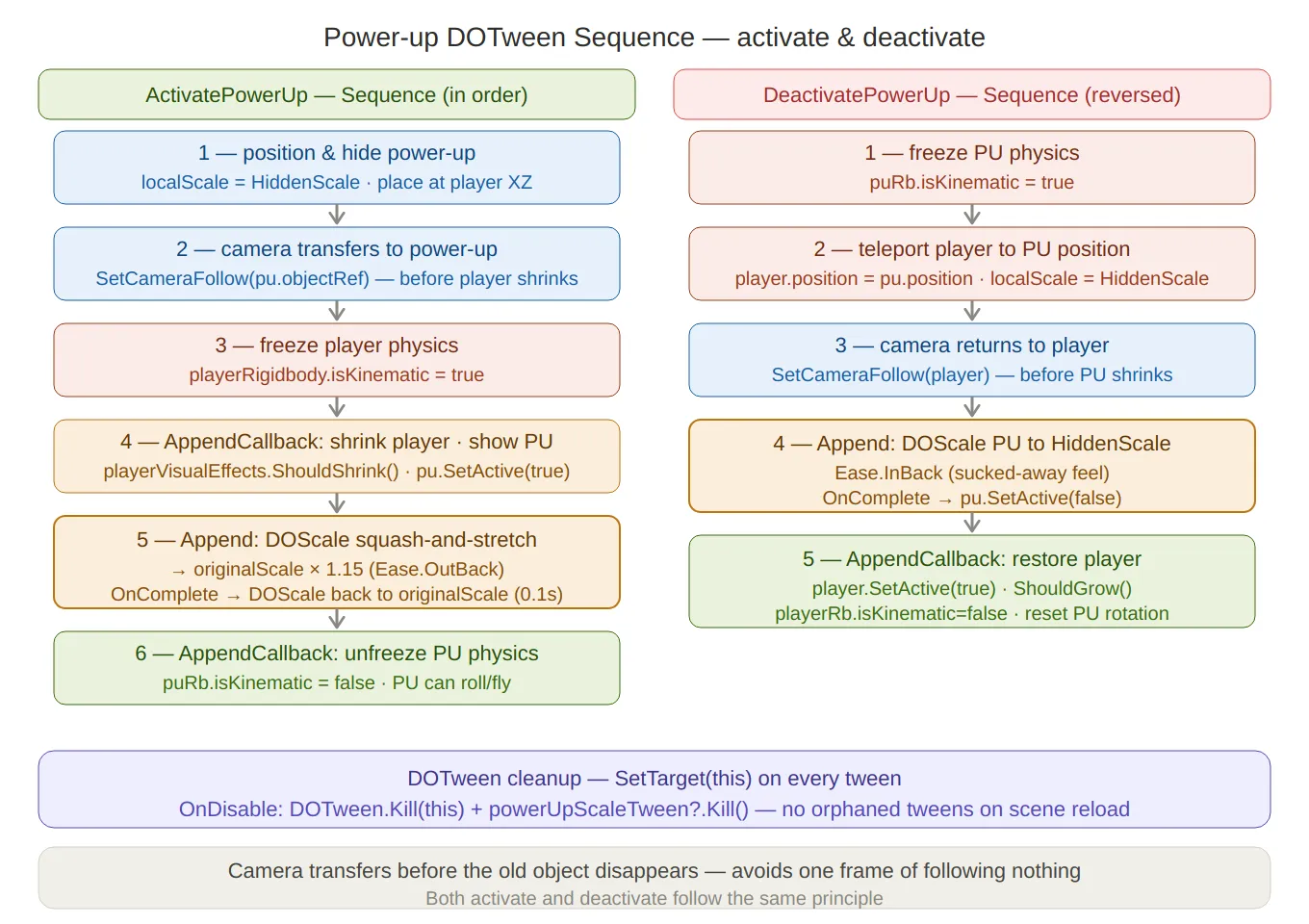
Power-up DOTween sequence — both activation (left) and deactivation (right) laid out as numbered step stacks,
with the camera-transfer-first rule annotated at the bottom. The Ease.OutBack squash-and-stretch and the
inverted Ease.InBack deactivation are both called out. The SetTarget(this) cleanup note sits in the footer.
PlayerVisualEffects — Reusable Bidirectional Tweens
The shrink and grow animations on the marble are not separate tweens — they are the same tween played in opposite directions.
In OnEnable, a single scaleTween is created, paused immediately, and configured
with callbacks for both ends:
// PlayerVisualEffects.cs
scaleTween = transform
    .DOScale(originalScale, shrinkDuration)
    .SetEase(Ease.InOutQuad)
    .SetAutoKill(false)          // keep alive after completion so it can be replayed
    .Pause()
    .SetLink(gameObject)         // auto-kill if the GameObject is destroyed
    .OnRewind(OnShrinkComplete)  // fires when played backwards and reaches t=0
    .OnComplete(OnGrowComplete); // fires when played forwards and reaches t=1
A matching trailScaleTween drives the trail renderer’s widthMultiplier in sync:
trailScaleTween = DOTween.To(
    () => trailRenderers[0].widthMultiplier,
    value => { foreach (var tr in trailRenderers) tr.widthMultiplier = value; },
    originalTrailWidth,
    shrinkDuration)
    .SetEase(Ease.InOutQuad)
    .SetAutoKill(false)
    .Pause()
    .SetLink(gameObject);
Both are driven by a five-state FSM that responds to external Should* flags set
by PowerUpManager and DeadZone:
private enum AnimationState { Idle, Shrink, Shrunk, Grow, Blink }

private void EvaluateAnimationState()
{
    switch (state)
    {
        case AnimationState.Idle:
            if (shouldShrink) EnterShrink();
            if (shouldBlink)  EnterBlink();
            break;
        case AnimationState.Shrunk:
            if (shouldGrow)   EnterGrow();
            break;
        // Shrink, Grow, Blink → waiting for tween callback, no polling needed
    }
}

private void EnterShrink() { state = AnimationState.Shrink; scaleTween.PlayBackwards(); trailScaleTween.PlayBackwards(); }
private void EnterGrow()   { state = AnimationState.Grow;   scaleTween.PlayForward();   trailScaleTween.PlayForward();   }
OnRewind and OnComplete advance the FSM when each direction finishes — no polling,
no WaitForSeconds, no frame delay:
private void OnShrinkComplete() { state = AnimationState.Shrunk; shouldShrink = false; }
private void OnGrowComplete()   { state = AnimationState.Idle;   shouldGrow   = false; }
The Blink Sequence
The blink effect (played on spike death) is a nested DOTween structure — an inner loop sequence wrapped by an outer delay sequence:
private void EnterBlink()
{
    state = AnimationState.Blink;
    EnableTrail(false);

    // Inner loop: toggle renderers off/on N times
    Sequence blinkLoop = DOTween.Sequence()
        .AppendCallback(() => SetRenderers(false))
        .AppendInterval(blinkDuration)
        .AppendCallback(() => SetRenderers(true))
        .AppendInterval(blinkDuration)
        .SetLoops(blinkCount * 2);  // blinkCount full on/off cycles

    // Outer: pre-delay so the spike impulse plays out first, then blink
    blinkTween = DOTween.Sequence()
        .AppendInterval(blinkDelay)
        .Append(blinkLoop)
        .SetLink(gameObject)
        .OnComplete(() => OnBlinkCompleted());
}
SetLoops(blinkCount * 2) rather than blinkCount because each full visible/invisible
cycle is two half-cycles in the inner sequence.
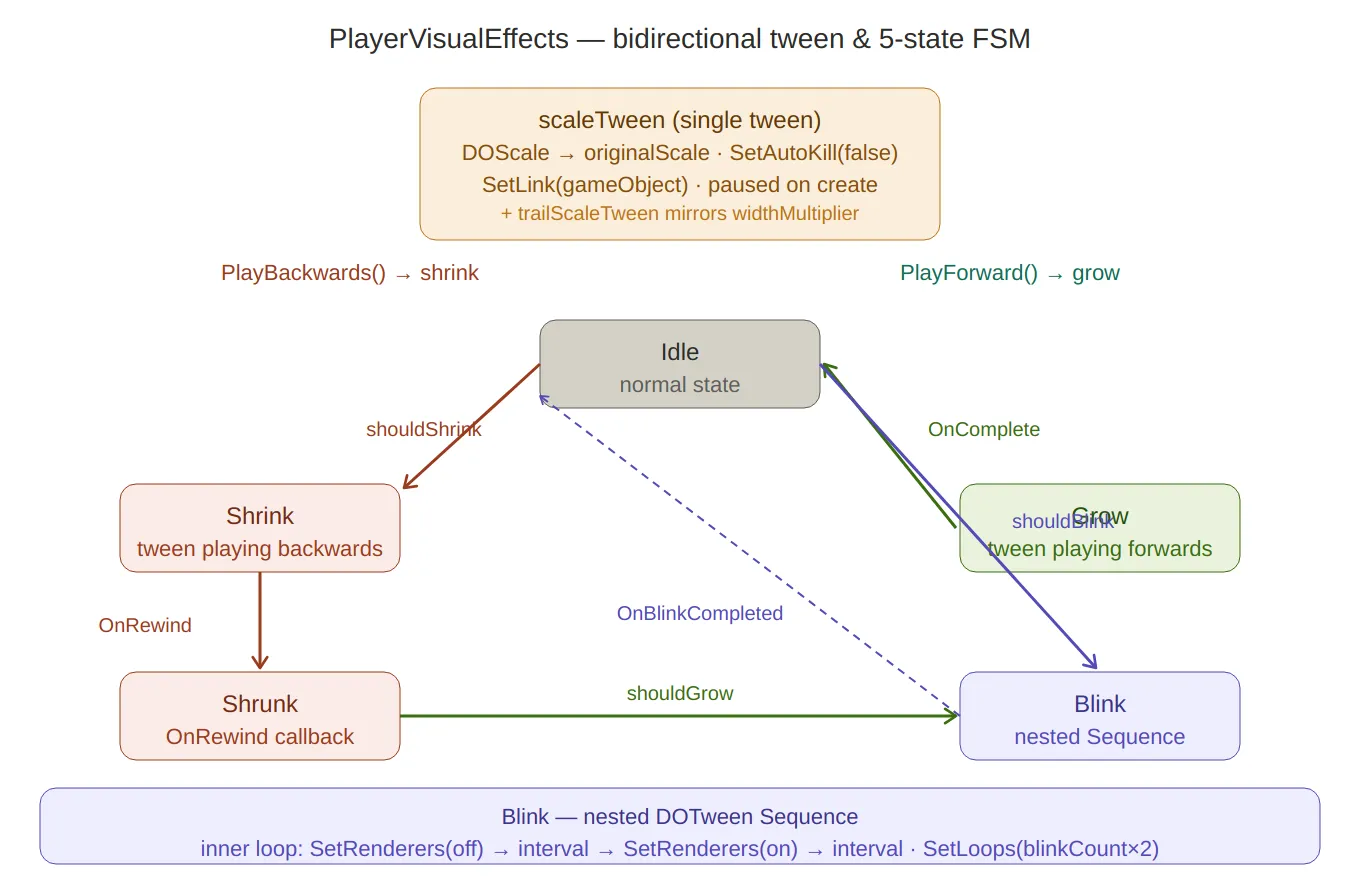
Visual effects FSM — the single bidirectional scaleTween at the top, then the five-state loop
(Idle → Shrink → Shrunk → Grow → back to Idle, plus the Blink branch from Idle).
Arrows are labelled with the trigger flags (shouldShrink, shouldGrow) and the tween callbacks
(OnRewind, OnComplete). The nested blink sequence structure is explained at the bottom.
PlayerMovement — Physics & Ground Detection
Spherecast Ground Check
A SphereCast rather than a Raycast is used for ground detection — a thin ray misses
edges the marble is clearly resting on, while a sphere of radius 0.75 catches them:
// PlayerMovement.cs — CheckGrounded()
Ray ray = new Ray(transform.position, Vector3.down);
isGrounded = Physics.SphereCast(ray, groundDetectionRadius, out hit,
    groundCheckDistance, groundedLayerMask);
lastSafePlatform is updated every grounded frame, excluding hazard tiles and the end
trigger — so the marble always respawns on solid, safe ground:
if (!hit.collider.CompareTag("Hazard") &&
    !hit.collider.CompareTag("MovingPlatform") &&
    !hit.collider.CompareTag("End"))
    lastSafePlatform = hit.collider.transform;
Adaptive Ground Radius
After two lives are lost on the same level, the spherecast radius expands from 0.75 to 0.95 — subtly making the marble easier to land without any visible change:
private void SetGroundRadiusHelp(int numberOfLivesLost)
{
    if (numberOfLivesLost >= 2)
        groundDetectionRadius = 0.95f;
}
This subscribes directly to LevelManager.OnLifeLostToThisLevel, so it fires
automatically with no polling.
Rolling with Torque
Movement applies torque perpendicular to the input direction — physically correct for a rolling sphere and better feeling than direct force:
private void Roll()
{
    Vector3 torque = Vector3.Cross(Vector3.up, movementInput.normalized);
    playerRigidbody.AddTorque(torque * torqueStrength, ForceMode.Acceleration);
}
ForceMode.Acceleration applies the torque ignoring mass — the marble accelerates
at the same rate regardless of scale changes during power-up transitions.
Jump with Directional Help
The jump force includes a fraction of the current movement input to give the player directional control in the air. The fraction differs by surface type:
private void Jump()
{
    jumpHelpValue = currentPlatform.CompareTag("Ice") ? iceHelp : groundHelp;
    // iceHelp = 0.35f (slippery → bigger directional influence)
    // groundHelp = 0.2f (normal → smaller)

    Vector3 directionHelper = movementInput * jumpHelpValue;
    playerRigidbody.AddForce((Vector3.up + directionHelper).normalized * jumpForce,
        ForceMode.Impulse);
}
Extra gravity is applied every FixedUpdate when airborne — making falls feel snappy
rather than floaty:
private void ApplyExtraGravity()
{
    if (!isGrounded)
        playerRigidbody.AddForce(Physics.gravity * gravityScale, ForceMode.Acceleration);
}
Moving Platform Counter-Torque
When the marble is standing still on a moving platform, angular velocity is damped to prevent it from spinning in place as the platform slides beneath it:
if (!allowRotation && currentPlatform.CompareTag("MovingPlatform"))
    playerRigidbody.angularVelocity =
        Vector3.Lerp(playerRigidbody.angularVelocity, Vector3.zero, 0.4f);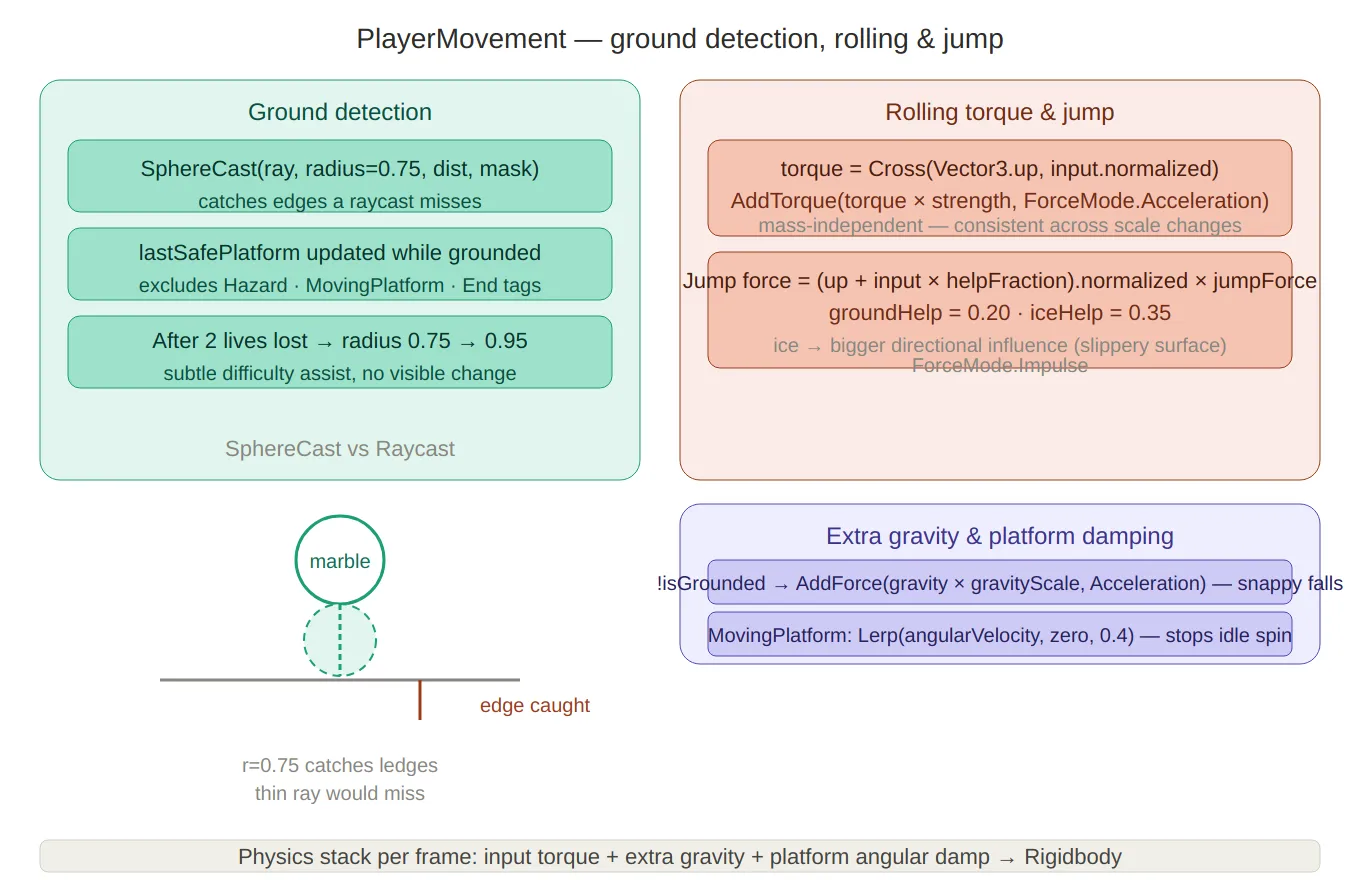
Movement & ground detection — left panel covers the spherecast (with a small visual showing the sphere
catching a ledge a thin ray would miss) and the adaptive radius expansion after 2 lives lost.
Right panel shows the torque cross-product formula, the groundHelp/iceHelp directional jump blend,
and extra gravity + platform angular damping.
PlayerController — Touch Input & Gesture Recognition
PlayerController uses Unity’s EnhancedTouch API, which provides per-finger tracking
with Finger objects and TouchPhase states.
Joystick Finger Tracking
The first finger down becomes the “joystick finger” — subsequent fingers trigger jumps immediately:
private void OnFingerDown(Finger finger)
{
    if (!InputGate.Allowed.HasFlag(AllowedInput.Touch)) return;
    if (IsPointerOverUI(finger)) return;

    if (joystickFinger == null)
    {
        joystickFinger    = finger;
        joystickStartPos  = finger.screenPosition;
        joystickStartTime = Time.timeAsDouble;
        joystickFingerDragged = false;
        return;
    }

    PerformJump(); // second finger = jump
}
Tap vs Swipe Disambiguation
On finger up, the system decides whether the gesture was a tap (trigger jump) or a drag (already sent movement) by checking three conditions simultaneously:
private void OnFingerUp(Finger finger)
{
    float duration = (float)(Time.timeAsDouble - joystickStartTime);
    float distance = Vector2.Distance(joystickStartPos, finger.screenPosition);

    bool isTapJump =
        InputGate.Allowed.HasFlag(AllowedInput.Tap) &&
        !joystickFingerDragged &&     // never moved past the deadzone
        duration <= tapMaxDuration && // < 0.25s
        distance <= tapMaxDistance;   // < 35px

    if (isTapJump) PerformJump();
    ResetJoystick();
}
The joystickFingerDragged flag is set in OnFingerMove only when the cumulative
drag exceeds joystickDeadZone (20px) — so brief accidental movements don’t
suppress the jump on release.
8-Cardinal Direction Snapping
Raw joystick input is snapped to the nearest of eight cardinal directions before being
sent to PlayerMovement. This makes diagonal movement feel intentional and consistent
regardless of exact finger angle:
// DirectionMapper.cs
public static Vector2 MapTo8CardinalPoints(Vector2 analogInput, float deadzone = 0.1f)
{
    float angle = Mathf.Atan2(analogInput.normalized.y, analogInput.normalized.x) * Mathf.Rad2Deg;
    if (angle < 0) angle += 360f;

    float snappedAngle = Mathf.Round(angle / 45f) * 45f % 360f;

    Vector2 snappedDirection = new Vector2(
        Mathf.Cos(snappedAngle * Mathf.Deg2Rad),
        Mathf.Sin(snappedAngle * Mathf.Deg2Rad)
    );

    return snappedDirection * analogInput.magnitude; // preserve analog magnitude
}
Preserving the original magnitude is important — a light drag produces gentle rolling,
a full drag produces maximum torque. Only the direction is snapped, not the intensity.
Movement Gate Clamping
ClampMovement applies MovementGate flags by zeroing the relevant axes —
no conditional branches in PlayerMovement, just clean input before it reaches
the physics system:
private Vector2 ClampMovement(Vector2 input)
{
    if (!MovementGate.Allowed.HasFlag(AllowedMovement.Forward))  result.y = Mathf.Min(result.y, 0f);
    if (!MovementGate.Allowed.HasFlag(AllowedMovement.Backward)) result.y = Mathf.Max(result.y, 0f);
    if (!MovementGate.Allowed.HasFlag(AllowedMovement.Right))    result.x = Mathf.Min(result.x, 0f);
    if (!MovementGate.Allowed.HasFlag(AllowedMovement.Left))     result.x = Mathf.Max(result.x, 0f);
    return result;
}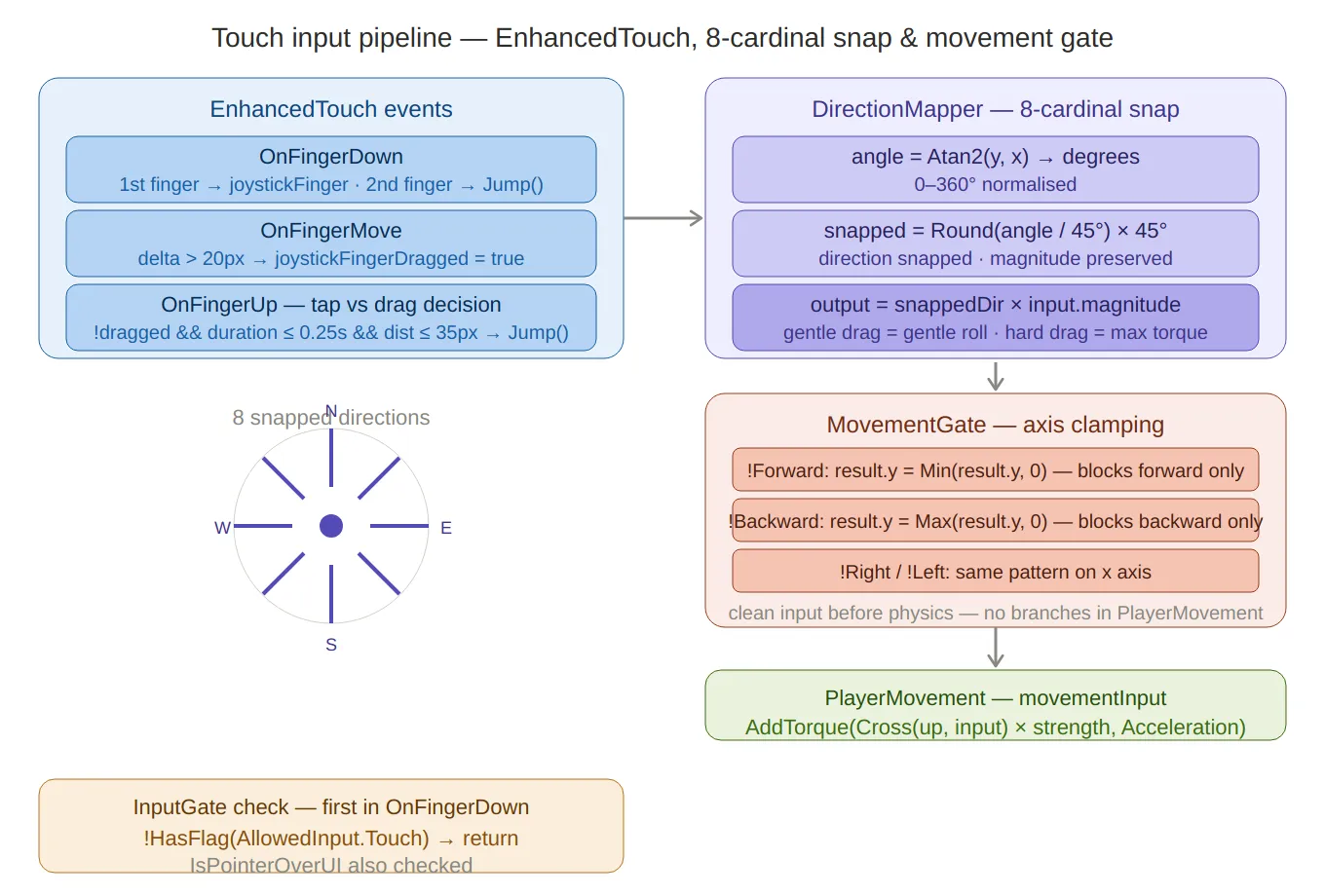
Touch input pipeline — three stages left to right: EnhancedTouch events (finger tracking,
tap vs drag decision with the three-condition gate), the 8-cardinal direction snapper (with
a compass rose visual showing the eight snapped directions), and MovementGate axis clamping
(zeroing individual axes without any conditional logic in the physics layer). The InputGate
UI check sits below as a prerequisite guard.
PlayerCamera — Follow, Shake & Grid Limits
The camera uses Cinemachine with a custom extension for grid-aware X clamping.
SetCameraFollow is a static method — any system can redirect the camera without
a direct reference to the PlayerCamera component:
public static void SetCameraFollow(GameObject objectToFollow)
{
    cinemachineCam.Follow = objectToFollow != null ? objectToFollow.transform : null;
}
Camera shake drives Cinemachine’s CinemachineBasicMultiChannelPerlin amplitude
directly — a timer counts down in Update and sets amplitude to zero when it expires:
// Jump shake: short, moderate amplitude
public static void Shake(string _) { currentShakeTimer = shakeTimer; shakeAmplitude = 0.75f; }

// Custom shake (e.g. end sequence rumble): duration + amplitude
public static void Shake(float duration, float amplitude) { currentShakeTimer = duration; shakeAmplitude = amplitude; }
X-axis camera limits are computed from the grid width at Start, scaled by
configurable percentage offsets — so the camera can only pan within the maze bounds:
cameraLimitsX.x = (width - 1) * cellSize * cameraGridLimitsPercentage.x;
cameraLimitsX.y = (width - 1) * cellSize * cameraGridLimitsPercentage.y;
camClamp.SetXLimits(cameraLimitsX);
Summary
| Component | Key technique |
|---|---|
PowerUpManager.ActivatePowerUp | DOTween Sequence: callback → squash scale → settle → callback |
PowerUpManager.DeactivatePowerUp | Reverse sequence: kinematic freeze → teleport → shrink → callback |
DOTween.Kill(this) | Targeted kill via SetTarget(this) — no orphaned tweens on scene reload |
PlayerVisualEffects scaleTween | SetAutoKill(false) + PlayForward/PlayBackwards — one tween, two directions |
PlayerVisualEffects blinkTween | Nested Sequence: inner SetLoops blink + outer delay wrapper |
PlayerMovement.CheckGrounded | SphereCast radius 0.75 — catches edges a raycast misses |
| Adaptive ground radius | groundDetectionRadius expands to 0.95 after 2 lives lost |
| Rolling torque | Vector3.Cross(up, input) + ForceMode.Acceleration — mass-independent |
| Jump directional help | groundHelp/iceHelp fractions of movement input blended into jump force |
DirectionMapper | Snap angle to nearest 45° while preserving analog magnitude |
| Tap/swipe disambiguation | Three-condition gate: !joystickFingerDragged && duration <= 0.25s && distance <= 35px |
ClampMovement | MovementGate flags zeroing axes — clean input before physics |
PlayerCamera.SetCameraFollow | Static — any system can redirect without a component reference |