-
Storage Chest - AlchemisTeddy 🧪🐻

This animated low-poly alchemist’s chest is designed for real-time gameplay.
The model uses flat colors to ensure clear readability of interactive elements, while hand-painted details (potion bottle, mushroom) highlight secondary features for added clarity and interest.
The animation was implemented with gameplay integration in mind, showcasing both technical setup and artistic direction. Optimized for performance, this asset represents an early test of the art–code pipeline within a larger playable WIP project.This game-ready asset is composed of 3 scripts and an animator system as explained below.
Script
The chest functionality relies on three primary scripts:
- TreasureChest.cs – handles activation, damage, and persistence.
- ItemSpawner.cs – spawns items along a parabolic arc with visual feedback.
- ChestAnimator.cs – links the chest’s open/close state to an Animator.
This separation ensures modularity: each script has a clear responsibility, making the system easy to extend or reuse.
TreasureChest.cs
The TreasureChest script implements multiple small interfaces (
IActivatable,IDamageable,ISaveable) to define its behavior without forcing unused methods.
It controls:- Opening/closing in response to player interaction.
- Item spawning when opened.
- Damage handling via TakeDamage.
- State persistence for saving/loading game sessions.
Examples
Toggling the chest open state and spawning items is handled elegantly with events:
    /// <summary>
    /// Activates the chest component
    /// </summary>
    /// <param name="activator"></param>
    public void Activate(GameObject activator)
    {
        // Return if chest has health
        if (currentHealth > 0) return;
        OnChestChangeState?.Invoke(isOpen = !isOpen);

        if (items.Count > 0)
        {   // Spawn Items in the items list
            foreach (ItemData item in items)
            {
                itemSpawner.SpawnItem(item);
            }
            items.Clear();
        }
    }
Persistence is managed through a lightweight string-based serialization system, mapping item IDs back to assets at load time:
public Dictionary<string, string> CaptureState()
{
    List<string> itemIDs = items.Select(item => item.ItemID).ToList();
    string itemStateString = string.Join(",", itemIDs);

    return new Dictionary<string, string>
    {
        { "isOpen", isOpen.ToString() },
        { "items", itemStateString }
    };
}
This design demonstrates clean event-driven programming, modularity, and runtime + persistent state management without bloating the script.
ItemSpawner.cs
ItemSpawner allows items to be launched along a customizable parabolic arc, providing dynamic feedback to the player.

Key features include:
- Randomized landing positions within a radius.
- Configurable arc height and travel duration.
- Coroutine-based movement with optional trail effects.

- Editor Gizmos for setup visualization.
Example
This code snippet show how the arc is drawn in the Editor with Gizmos.
   /// <summary>
   /// Draws Gizmos in the editor when the object is selected to visualize the spawn trajectory.
   /// </summary>
   private void OnDrawGizmos()
   {
       // Ensure we have a spawn point to draw from.
       if (spawnPoint == null) return;

       // --- Draw the Landing Zone ---
       Handles.color = Color.green;
       // The third parameter is the "normal" or the direction the circle should face. Vector3.up makes it flat on the XZ plane.
       Handles.DrawWireDisc(landingPoint.position, Vector3.up, landingRadius);

       // --- Draw the Arc Path ---
       Gizmos.color = Color.cyan;
       Vector3 previousPoint = spawnPoint.position;

       // Loop through a number of steps to draw the arc.
       for (int i = 1; i <= gizmoPathResolution; i++)
       {
           // Calculate the 't' value (normalized progress) for this step.
           float t = (float)i / gizmoPathResolution;

           // Use the same math as the coroutine to calculate the point on the arc.
           Vector3 linearPosition = Vector3.Lerp(spawnPoint.position, landingPoint.position, t);
           float arc = 4 * arcHeight * (t - (t * t));
           Vector3 currentPoint = linearPosition + new Vector3(0, arc, 0);

           // Draw a line from the previous point to the current one.
           Gizmos.DrawLine(previousPoint, currentPoint);
           previousPoint = currentPoint;
       }
   }
This system is modular, so any item with a prefab can be launched without additional scripting, and designers can adjust trajectories visually in the editor.
Animation
Chest animations are handled by a small, dedicated script: ChestAnimator.cs. Its job is simple but crucial: respond to chest state changes and update the Animator parameters.
public void OpenChest(bool value)
{
    animator.SetBool(isOpenHash, value);
}
The animator listens to the same
OnChestChangeStateevent from TreasureChest.cs, ensuring decoupling between gameplay logic and animation. This event-driven approach allows the animation system to be reused or swapped without touching the chest’s core logic.Optimization
A small but important optimization is applied in the animation system:
void Start()
{
    isOpenHash = Animator.StringToHash("isOpen");
}
By caching the parameter hash once at startup, the script avoids repeated string lookups each frame. This is much more performant in real-time gameplay, especially when multiple chests exist in the scene. It’s a simple change that demonstrates attention to both technical efficiency and scalable design.
Design Considerations
This setup demonstrates modular, scalable architecture:
- TreasureChest: gameplay logic, persistence, damage.
- ItemSpawner: visual and interactive feedback for items.
- ChestAnimator: purely visual animation tied to game state.
By separating responsibilities and using events, the system is robust, easy to debug, and ready to extend with new features such as alternative animations, loot systems, or multiplayer synchronization.
Conclusion
The alchemist’s storage chest is more than a decorative prop, it’s a fully integrated gameplay system.
- The scripts handle activation, durability, persistence, and item spawning, making the chest modular and adaptable to different design needs.
- The animation system cleanly ties into gameplay events, with optimizations that ensure smooth, scalable performance in real-time scenes.
Together, these elements show how art and code converge in a single prefab. The chest is readable, performant, and ready for integration into a larger playable environment, demonstrating a pipeline that balances technical rigor with creative direction.
Created on September 2025 -
Crafting Table - AlchemisTeddy 🧪🐻
This stylized low-poly prefab represents an alchemist’s crafting table, designed as part of a larger playable project. The asset balances functionality and aesthetics: flat colors clearly highlight interactive elements for gameplay, while hand-painted details and a custom cauldron shader add artistic depth and atmosphere.
Built through close collaboration between art and programming, this piece reflects our ability to merge technical constraints with creative direction. It demonstrates a pipeline suitable for real-time applications, optimized performance, and modular scene integration.
This crafting table features two scripts and one shader as explained below.
Scripts
The crafting table relies on two key scripts: one managing the overall crafting logic, and another handling individual ingredient slots.
Together, they form the core gameplay loop: the player places items on stations, activates the table, and, if a valid recipe exists, receives the crafted result.This modular approach makes the system highly reusable: ingredient stations can be added or removed without rewriting the crafting logic, and the whole table integrates seamlessly with the player’s inventory and save system.
CraftingTable.cs
The CraftingTable script serves as the central brain of the system. When the player interacts with the table, the script collects all items currently placed on connected ingredient stations and compares them against the list of available recipes in the player’s inventory.
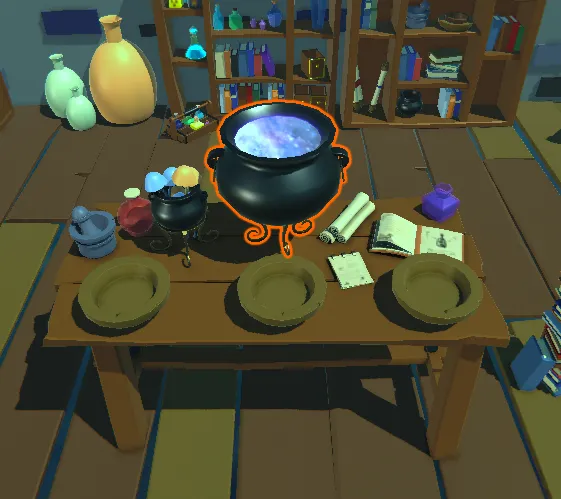
If a recipe match is found, the system consumes the ingredients, clears the stations, and either:
Grants the crafted item directly to the player’s inventory, or Spawns the item in the world through an optional ItemSpawner component.This separation ensures flexibility: designers can choose whether results should be instantly stored or physically spawned into the scene.
The Key responsibilities of this script include:
- Querying all ingredient stations.
- Validating combinations against available recipes.
- Handling success and failure feedback.
- Maintaining modularity via the IActivatable interface.
For example, the recipe-matching function is deliberately kept small and clear:
/// <summary>
/// Checks the provided ingredients against all available recipes.
/// </summary>
/// <returns>The matching CraftingRecipe, or null if no match is found.</returns>
private CraftingRecipe FindMatchingRecipe(List<ItemData> ingredients)
{
    foreach (var recipe in playerInventory.GetAvailableRecipes())
    {
        // Check if the recipe can be crafted with the ingredients.
        // Also ensure the number of ingredients matches to prevent crafting with extra items on the table.
        if (recipe.ingredients.Count == ingredients.Count && recipe.CanCraft(ingredients))
        {
            return recipe;
        }
    }
    return null;
}
This concise check ensures no false positives occur if extra items are placed, while still making it easy to extend with new recipe logic.
This orchestration keeps the crafting logic clean and self-contained, while remaining adaptable to future extensions (e.g., timed crafting, animations, or multiplayer interactions).
IngredientStation.cs
Each IngredientStation acts as a slot where players can place or remove items. The script ensures only valid ingredient-type items can be placed, instantiates a corresponding 3D prefab for feedback, and returns items to the inventory if removed.
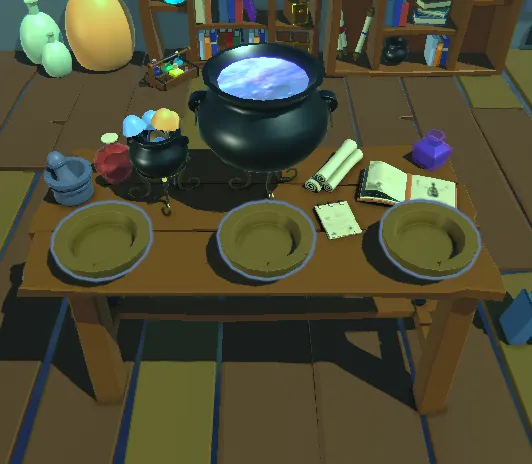
From a gameplay perspective, this makes the system intuitive: the player sees the ingredients laid out visually on the table, ready for combination.
From a technical perspective, the script includes:
- Interaction handling: opening the inventory UI when empty, returning items when full.
- Visual updates: spawning item prefabs at a defined slot location.
- Persistence: implementing
ISaveableto record which item was present at save time and restoring it on load. - Editor feedback: using
OnDrawGizmosto visualize station states (empty vs filled) directly in the Unity scene view.
The placement method shows this defensive approach clearly:
    /// <summary>
    /// Places an item on this station.
    /// </summary>
    public void PlaceItem(ItemData item, PlayerInventoryManager placerInventory = null)
    {
        // We should only accept items that are ingredients.
        if (item.itemType == ItemType.Ingredient)
        {
            currentItem = item;
            Debug.Log($"Placed {item.itemName} on station {gameObject.name}.");

            // Update visual model.
            if(currentWorldItem != null) { Destroy(currentWorldItem); currentWorldItem = null; }
            currentWorldItem = Instantiate(currentItem.prefab, worldItemPosition.transform.position, Quaternion.identity, worldItemPosition.transform);
            currentWorldItem.GetComponent<WorldItem>().enabled = false;
            currentWorldItem.layer = 0;
        }
        else
        {
            Debug.LogWarning($"{item.name} is not an ingredient and cannot be placed here.");
            // If a non-ingredient was somehow selected, give it back to the player.
            placerInventory.AddItem(item);
        }
    }
It validates the item type, cleans up any existing world object, and re-instantiates the prefab in the correct position, all while gracefully handling invalid cases.
To support saving and loading, the station also implements lightweight persistence:
Saving
    /// <summary>
    /// Captures the state of the ingredient station for saving.
    /// </summary>
    /// <returns>A dictionary containing the ID of the item on the station, or an empty dictionary if there is no item.</returns>
    public Dictionary<string, string> CaptureState()
    {
        var state = new Dictionary<string, string>();
        // Check if there is an item currently on the station.
        if (currentItem != null)
        {
            // If there is, save its unique ItemID string.
            // use of a clear key like "currentItemId" to know what this data represents.
            state.Add("currentItemId", currentItem.ItemID);
        }
        // If currentItem is null, simply return an empty dictionary.
        // The absence of the key on load will tell the station was empty.
        return state;
    }
Loading
    /// <summary>
    /// Restores the state of the ingredient station from loaded data.
    /// </summary>
    /// <param name="state">The dictionary containing the saved data.</param>
    public void RestoreState(Dictionary<string, string> state)
    {
        // Check if the loaded data contains a value for our item.
        if (state.TryGetValue("currentItemId", out string savedItemId))
        {
            // If an ID was saved, we need to find the corresponding ItemData asset.
            // /!\ This lookup logic should be centralized for efficiency /!\
            // For simplicity we can use Resources.FindObjectsOfTypeAll here at the moment.
            var allItems = Resources.FindObjectsOfTypeAll<ItemData>();
            ItemData foundItem = null;
            foreach (var itemAsset in allItems)
            {
                if (itemAsset.ItemID == savedItemId)
                {
                    foundItem = itemAsset;
                    break; // Found the item, no need to search further.
                }
            }
            if (foundItem != null)
            {
                // If matching ItemData asset was found, place it on the station.)
                PlaceItem(foundItem);
            }
            else
            {
                Debug.LogWarning($"IngredientStation {gameObject.name} could not find an ItemData asset with saved ID: {savedItemId}. Station will be empty.");
                currentItem = null; // Ensure station is empty if item not found.
                if(currentWorldItem != null) Destroy(currentWorldItem);
            }
        }
        else
        {
            // If no ID was found in the save data, it means the station was empty.
            // Ensure the currentItem is null.
            currentItem = null;
            if (currentWorldItem != null) Destroy(currentWorldItem);
        }
    }
This approach keeps data handling minimal while still robust. Items are identified by their unique ID, making it straightforward to restore them into the scene, or cleanly reset the station if the asset can’t be found.
This focus on modularity means the same component could be reused in different contexts such as potion brewing, blacksmithing, or even non-crafting interactions like puzzle pedestals.
Design Considerations
Both scripts emphasize extensibility and clarity.
By relying on interfaces (IActivatable, ISaveable) and modular components, the system remains lightweight, testable, and adaptable. Designers can extend the crafting experience by simply creating new recipes or stations, without touching core logic.In practice, this allows the crafting table to serve as more than a one-off object: it becomes a scalable foundation for a wide range of interactive systems across the project.
Shader

While the scripts define the crafting logic, the shader brings the table’s visual identity to life. The cauldron isn’t just a static prop—it reacts dynamically, helping players instantly recognize that something magical is happening.
The shader was designed with two goals in mind:
- Gameplay readability: clear feedback when crafting is possible or in progress.
- Stylized aesthetics: hand-painted detail balanced with procedural motion.
Cauldron Shader
At its core, the cauldron shader blends flat stylized colors with animated surface effects. By using time-based noise and custom rim lighting, the shader simulates bubbling liquid that feels alive while still fitting into a low-poly art direction.
Key features include:
- Color zones: a simple gradient creates depth without relying on heavy textures.
- UV distortion: subtle scrolling noise adds surface movement to mimic liquid.
- Emission highlights: glowing edges emphasize the magical energy of the brew.
- Parameter control: intensity, speed, and color can be tuned to match the recipe or environment.
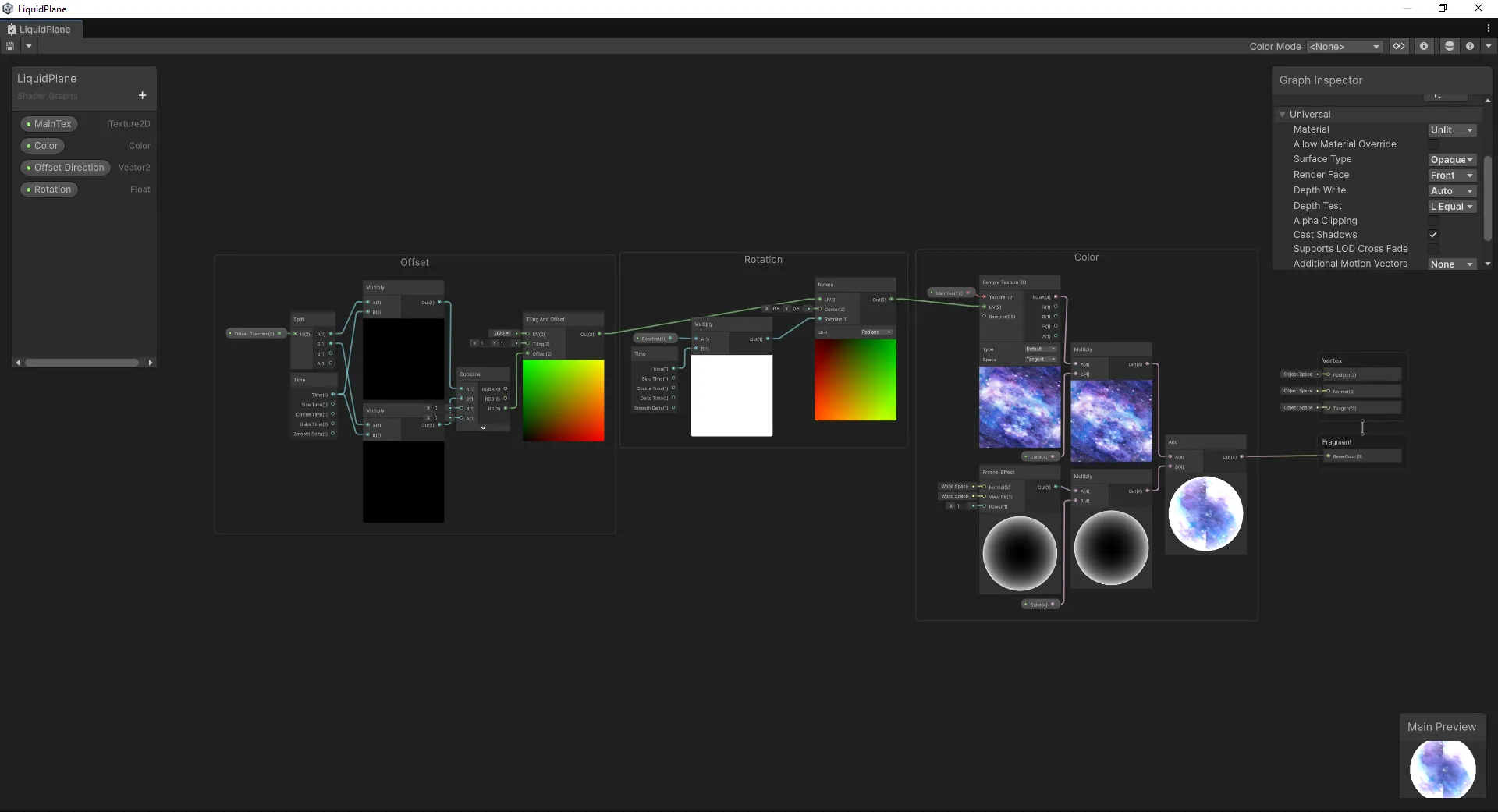
Because the shader was built with real-time constraints in mind, it remains lightweight, optimized for performance while still delivering strong atmosphere.
Integration
The shader is applied directly to the cauldron mesh and linked to the crafting logic, making it easy to trigger visual states such as:
- Idle (calm, faint bubbling).
- Active (stronger glow, faster distortion).
- Success (a flash or pulse upon crafting).
This dynamic response turns the crafting table into more than just a container of ingredients: it becomes a living part of the scene, reinforcing feedback loops between art, design, and code.
Conclusion
The alchemist’s crafting table represents more than a single asset, it’s a proof of concept for our pipeline.
By combining modular scripts with a lightweight stylized shader, we created an object that is both functional for gameplay and rich in artistic detail.
The scripts ensure modularity, persistence, and flexibility, making the system easy to expand with new recipes or stations.
The shader adds atmosphere and communicates game states visually, keeping the player immersed without extra UI clutter.This balance of technical clarity and artistic direction is central to how we approach real-time asset creation. Each piece is designed not just to look good, but to integrate smoothly into a playable environment, optimized, extensible, and ready for iteration.
In short: the crafting table is a small example of how code and art converge to create interactive storytelling elements in games.
Created on September 2025 -
Unity Tips - Inspector Attributes
For the Swiss Game Academy, I had to build a project to teach students some good practices to use in Unity. The first chapter of the course was focused on Attributes, ScriptableObjects, Enums and Inheritance.
This post talks about the Unity Attributes.Example
When building tools or data-driven systems in Unity, the Inspector can quickly become cluttered. Luckily, Unity provides attributes like
[Header],[Tooltip],[Range], and more to make your scripts much more user-friendly!Here’s a quick example with a ScriptableObject Item:
[CreateAssetMenu(fileName = "New Item", menuName = "Alchemist's Inventory/Item")]
public class ItemData : ScriptableObject
{
    [Header("Core Item Information")]
    [Tooltip("The name of the item shown in the UI.")]
    public string itemName;

    [Tooltip("The description of the item.")]
    [TextArea(3, 5)]
    public string description;

    [Tooltip("The monetary value of the item.")]
    [Range(0, 999)]
    public int value;

    [Space(15)]
    [Header("Item Graphical Settings")]
    [Tooltip("The icon that represents this item.")]
    public Sprite icon;

    [Tooltip("The prefab spawned in the world.")]
    public GameObject prefab;

    [Tooltip("Trail colors when the object is spawned.")]
    [ColorUsage(true, true)]
    public Color[] trailColors = new Color[2];
}
Result
Here are the results:
Before using attributes After using attributes 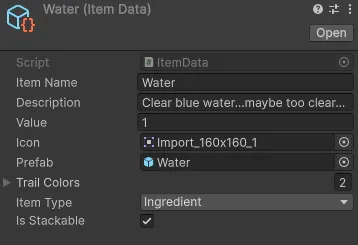
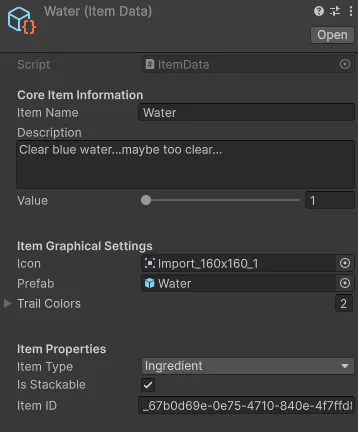
In this case fields are still readable but this is a simple item. On much larger ones, the result might be much more confusing.
Conclusion
That is why we use Attributes like:
[Header("The name of the header")]To creates categories in the Inspector for readability[Tooltip]To add hover descriptions (great for designers on your team)[Space]to add visual separation between sections.[Range]to add a slider, preventing invalid values[TextArea]to let you write multi-line text fields[ColorUsage]to enable HDR colors for vibrant effects
These tiny attributes may look simple, but they dramatically improve workflow and collaboration, especially when working with non-programmers.
There are multiple other attributes that can be useful and a github page lists some of the most useful ones HERECreated on September 2025 -
Swiss Game Academy - Advanced Programming Course - AlchemisTeddy
During summer 2025, I gave a course about “advanced” programming practices in general and in the Unity 6 engine for the Swiss Game Academy (SGA) at the HEIA-FR University

This course was designed to go beyond basic scripting and teach students how to think like software architects.
Created on August 2025 -
Quiz Trainer - Web Training Portal
During my time at Lab4Tech, I was training to obtain different certifications like the
C++ CLA & CPP and the Unity Professional Programmer.The only problem was that the question pool was so little, it made it impossible to truly train on a vast amount of questions.
For that reason I decided to create my own tool that I named Created on July 2025
 -
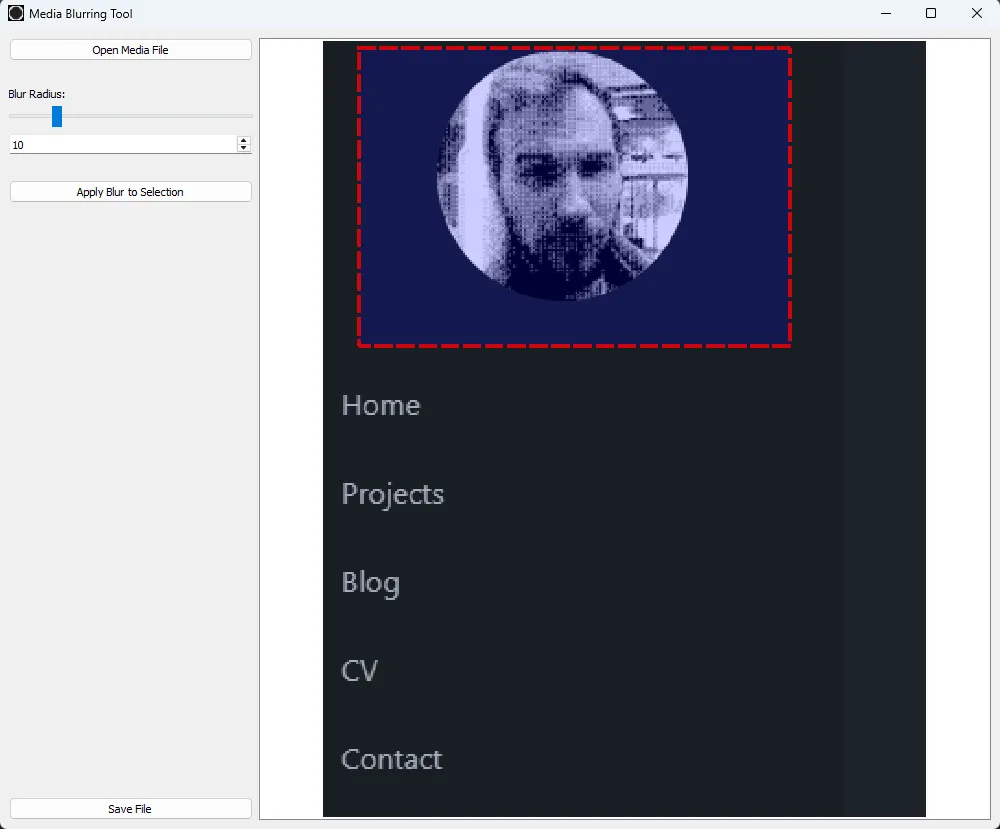
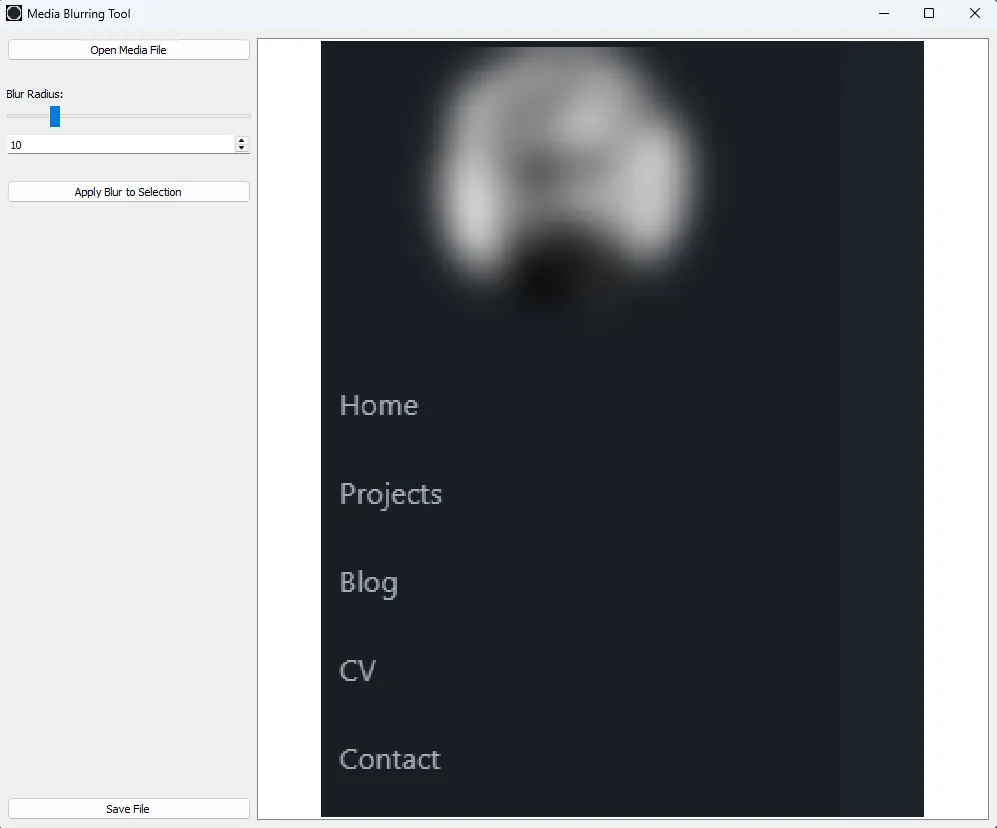
MediaBlur - Python media bluring tool
I wanted to develop my own tool to be able to blur-out parts of documents without having to rely on web tools or specific softwares that require subscription or payments to access “an Entire World of possibilities” where actually I just needed one specific feature.
 Created on July 2025
 -
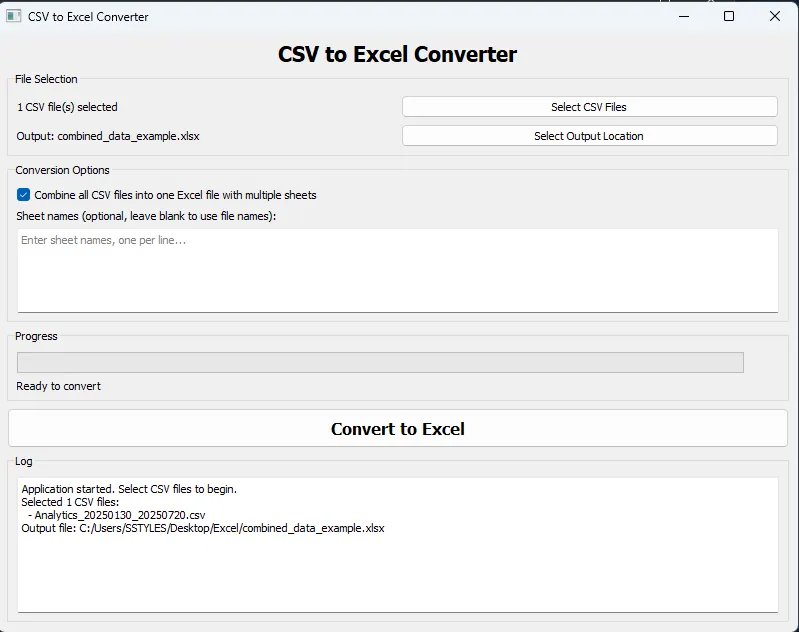
CsvConverter - Python CSV to Excel tool
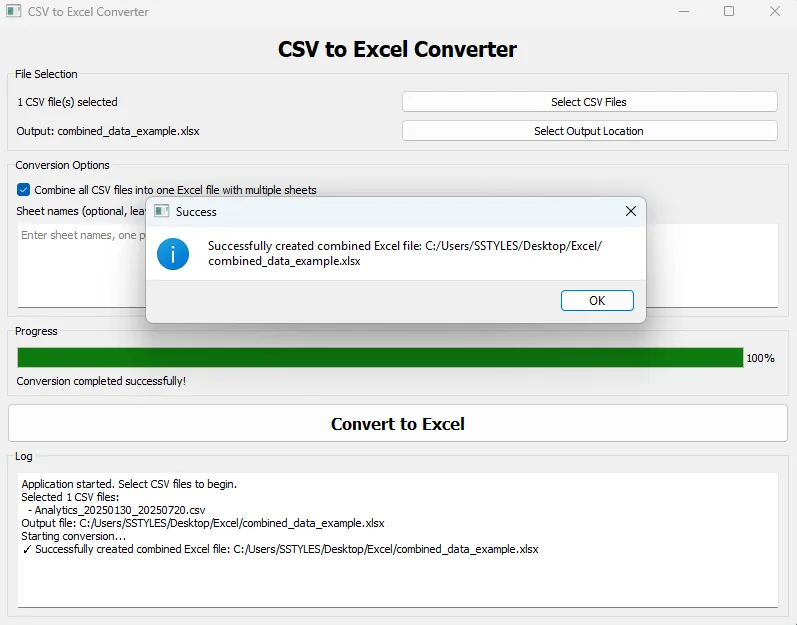
I wanted to develop my own tool to be able to convert CSVs into excel spreadsheets. Although, a lot of programs already have that feature, I wanted to have a try and do my own.
 Created on July 2025
 -
Unreal Engine - Renaming Tool
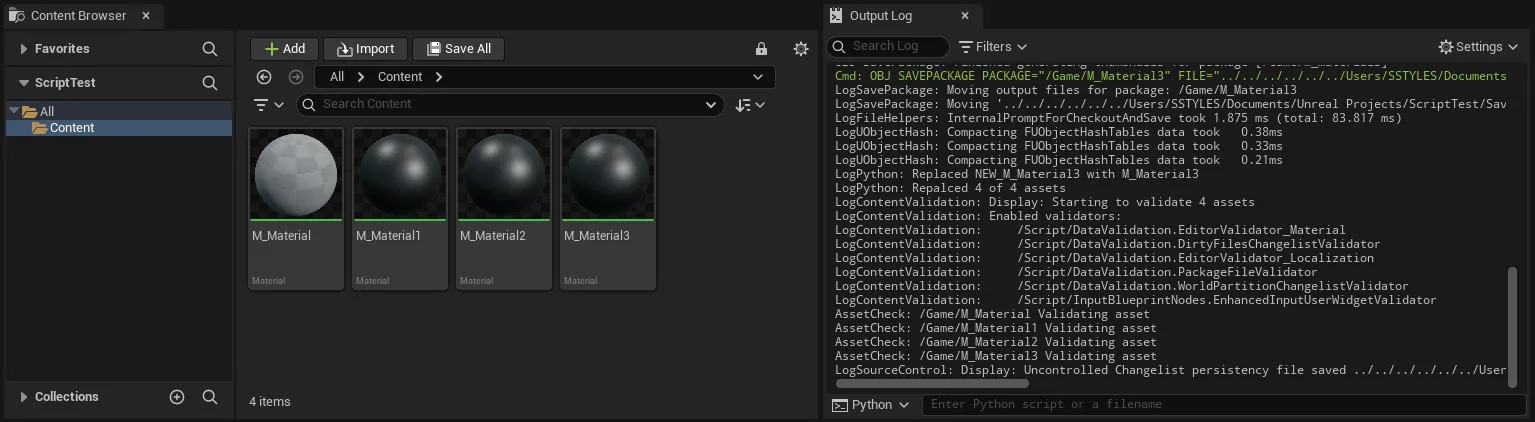
During my studies, I worked for projects at Styles Studio SàRL. During that time I sometimes had to integrate objects from divers origins into Unreal projects. Since the naming conventions weren’t strictly established I often had to rename objects and folder.
Renaming a unique object isn’t a problem, but when there are thousands it can be time consuming. For that reason I decided to create a script that would automatically rename object according to the desired input.
 Created on November 2024
 -
Bachelor Thesis - 3D Fur Rendering
During my last year of bachelor’s degree in Game Programming, I worked on a HLSL Fur rendering project in Unity. Project for which I wrote a memoire that can be found in a pdf version below
Created on July 2024 -
Unreal Stylized Shaders - Specialization projects

Another part of my work during the project mentioned in the previous blog was to create the pipeline that would mimic a “water painting” visual.
 Created on February 2024